Aldine / Overleaf and GitHub
Connecting Overleaf to GitHub: setup, sync, limits and other routes
Overleaf can link a project to a GitHub repository. It is a premium feature, it works with github.com, and it syncs when someone clicks push or pull rather than on its own. This page walks through the setup as Overleaf documents it, what each sync does, where the size limits sit, how GitLab fits in, and what you can do on the free plan.
Written by the Aldine project, so read it with that in mind. Statements about other products are taken from the linked pages of that product's own documentation. Checked on 24 November 2026.
Is it a paid feature?
Yes. Overleaf's documentation says: "GitHub synchronization is a premium feature." It is open to members of Overleaf Commons institutions, members of group subscriptions and owners of individual subscriptions. (Overleaf docs: GitHub synchronization, as of November 2026) On the plans page, Git and GitHub share one "Integrations" row, ticked for the Student, Standard, Pro and Organizations plans and not for Free. (Overleaf plans, as of November 2026) If you searched for Overleaf Pro and GitHub: Pro includes it, and so do the other paid plans listed there.
Self-hosted Overleaf is a different case. The on-premises comparison table lists git integration for Server Pro and not for Community Edition, and it has no row for GitHub synchronization at all. (Overleaf docs: Server Pro vs. Community Edition, as of November 2026)
Setting it up, step by step
There are two directions, and you pick one per project. "It is not possible to synchronize an existing Overleaf project with an existing GitHub repository," so either the repository is new or the Overleaf project is. (Overleaf docs: GitHub synchronization, as of November 2026)
First: link your GitHub account
You connect GitHub to Overleaf once, in your Overleaf Account Settings. Which repositories Overleaf can then see depends on the permissions you grant on the GitHub side. Repositories that belong to a GitHub organization need one more step: the organization has to approve the Overleaf app, which members can request and owners grant. (Overleaf docs: GitHub synchronization, as of November 2026) If an organization's repositories are missing from the list, that approval is the first thing to check.
Option A: push an Overleaf project to a new GitHub repository
- Open the project in the editor.
- Open Integrations in the left-hand sidebar and click GitHub.
- Enter a name for the new repository in the dialog and create it.
Overleaf's page names only the repository name as a field here. (Overleaf docs: GitHub synchronization, as of November 2026)
Option B: import a GitHub repository as a new Overleaf project
- On the project dashboard, open the New project menu and choose GitHub repo.
- Find the repository in the list. It shows what your linked GitHub account can see.
- Click Import to Overleaf. A new project is created from the repository.
(Overleaf docs: GitHub synchronization, as of November 2026)
Choose carefully. "Once a project is linked to a repository, it cannot be unlinked and used to create a new repository." The documented way around that is to copy the project and create a repository from the copy. (Overleaf docs: GitHub synchronization, as of November 2026)
What push and pull do
Nothing moves on its own. "Synchronization between GitHub and Overleaf does not happen automatically." You open the GitHub entry under Integrations, see whether GitHub has changes to pull, and push your Overleaf changes from the same dialog. The push option stays visible even when both sides already match. A push creates one commit on GitHub, with an optional commit message you type in. (Overleaf docs: GitHub synchronization, as of November 2026)
Authorship differs by direction. Commits pushed from Overleaf appear on GitHub under the linked GitHub account of the project owner. Going the other way, "Changes in Overleaf history from GitHub will be shown as being authored by anonymous." (Overleaf docs: GitHub synchronization, as of November 2026) In practice: if several co-authors edit in Overleaf and you push once, GitHub sees one commit by one person.
Track changes and comments are a separate thing. Overleaf's limitations table notes that pulling from GitHub can displace them and advises against mixing the two on one project. (Overleaf docs: GitHub synchronization, as of November 2026)
Merge conflicts
Say you edited intro.tex on Overleaf and a co-author changed the same lines on GitHub. When git cannot merge the two, Overleaf does not touch your main branch: "instead of merging into your main branch, we push a new branch to your repository." The branch name carries the date and time, and it holds the Overleaf version. You then merge it into the default branch yourself, either locally with git or by opening a pull request on GitHub and using its conflict editor. (Overleaf docs: GitHub synchronization, as of November 2026)
Branches only exist on the GitHub side, though. Overleaf keeps one line of history: "The Overleaf Git system does not support branching." (Overleaf docs: Git integration, as of November 2026)
Size limits and things that do not sync
- 7 MB of editable content. "Github sync won't operate if the total amount of editable (not view-only) content surpasses 7 MB," and you get an error message.
- Commits under 100 files. Overleaf recommends that, and a total project size under 100 MB when you use GitHub sync. Larger projects may work but can run into sync trouble.
- Not carried over: Git LFS, submodules, symlinks (they become regular files) and execute permissions.
- github.com only. "GitHub Synchronization can only be used on Github.com", so GitHub Enterprise installations are out.
(Overleaf docs: GitHub synchronization, as of November 2026)
The general plan limits apply on top. They are the same on free and paid plans for everything except compile time and the AI allowance: 2000 files per project, 7 MB of editable material, 2 MB per editable text file and 50 MB per upload. For total size, Overleaf recommends at most 500 MB, or under 100 MB with GitHub sync or the git integration. (Overleaf docs: plan limits, as of November 2026)
Who can do what
"Only the project owner can initialize GitHub sync for a project; collaborators cannot set up the initial link." (Overleaf docs: GitHub synchronization, as of November 2026) The page does not say whether collaborators can push or pull once the link exists, so check that on your own project before you rely on it.
For the git integration the rule is about the owner's plan. It "will only be available if the project owner has a paid subscription" (or has been given access to the feature). (Overleaf docs: Git integration, as of November 2026) A collaborator on a shared project can create their own authentication token and use it to reach the project. (Overleaf docs: authentication tokens, as of November 2026) How cloning with a token works is on cloning an Overleaf project with git.
GitLab, Bitbucket and other hosts
There is no direct sync. Overleaf's limitations table lists "Direct Synchronization with GitHub Enterprise or GitLab" as unsupported and names the git integration as the indirect route. (Overleaf docs: GitHub synchronization, as of November 2026) The advanced git page describes the setup: an intermediary local repository, and "Your local will need to have two remotes so that it points to both your Git host and the Overleaf project." (Overleaf docs: advanced Git operations, as of November 2026)
With standard git that looks like this, run in your own clone of the GitLab repository (the Overleaf URL has your project's id in it):
git remote add overleaf https://git.overleaf.com/1234567
git pull overleaf main
git push origin main      # to GitLab
git push overleaf main    # back to Overleaf
Two things to know. This route needs the git integration, which is also a premium feature, so it needs a premium plan as well. And Overleaf keeps a single branch, main in new clones (older ones may use master). (Overleaf docs: Git integration, as of November 2026) When the GitLab repository already exists and the Overleaf project is new, the advanced page shows the first pull with --allow-unrelated-histories. (Overleaf docs: advanced Git operations, as of November 2026)
The free route: source ZIP
On the free plan you can still get your files into git. In the editor, choose File, then under Download pick "Download as source (.zip)"; the dashboard has a "Download .zip file" button per project too. The documentation names no plan requirement for either. (Overleaf docs: downloading a project, as of November 2026) Unzip it over your working copy, review git diff, commit, push to GitHub or GitLab.
The way back is manual. Overleaf's upload page describes New project, then "Existing project (.zip)", which creates a new project; it caps one upload at 180 files and 7 MB of editable material. (Overleaf docs: uploading a project, as of November 2026) It does not describe replacing the files of an existing project from a ZIP. So a change made on GitHub comes back as a new Overleaf project, not as an update to the old one. In practice the ZIP route gives you one-way snapshots: useful for backups, less suited to editing in both places.
How GitHub and GitLab work in Aldine
Aldine is an open-source, self-hosted collaborative LaTeX editor, and here it starts from the other end. Every project is already a real git repository on your server, so syncing with a host is plain git push and pull.
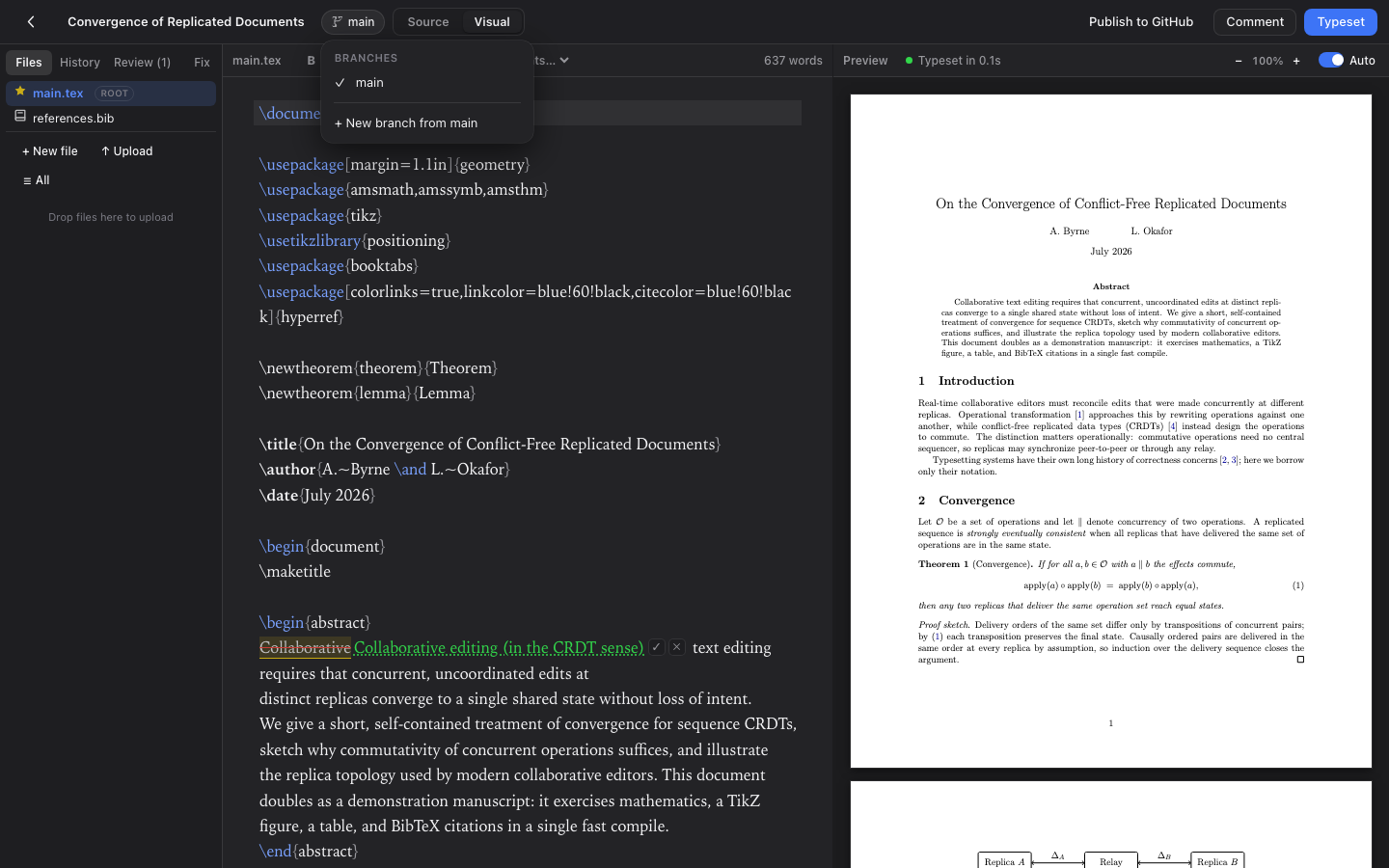
Branches in Aldine: create, switch and merge from the UI.
- Four hosts. GitHub, GitLab (gitlab.com or self-hosted), Gitea and Forgejo, Codeberg included. A personal access token is enough to connect; an OAuth app is optional. An administrator can point GitHub sync at a GitHub Enterprise Server.
- Both directions, existing repos included. Import a repository as a project, or publish a project to a fresh repository.
- Push and pull from the editor with ahead and behind counts. A conflicting pull lists the files and keeps your version until you take the remote's. You can open a pull or merge request from there.
- Branches. Create one, edit it, merge it back, all in the browser.
- Mixed tools. One co-author writes in the browser; another clones the repository and stays in VS Code, and their commits come back with one Pull. Each person can set a commit email so commits show up on their GitHub or GitLab profile.
- Autopush for teams. An instance can create every new project in a GitLab group and push every autosave from the server.
The limits are real too. Aldine is self-hosted only, with no hosted service today, and it is young: first release in July 2026, 1.0 in October 2026. Review works as comments with suggested edits, not keystroke-level track changes. The full list is in the self-hosting guide, and the broader git comparison is on git with Overleaf.
No account, no install. The demo is a shared sandbox and resets every night.
When Overleaf's GitHub sync is the better choice
- You don't want to run a server. Overleaf's README says: "We run a hosted version at www.overleaf.com." Aldine needs a server of yours. (Overleaf repository README, as of November 2026)
- Your co-authors already write on Overleaf and you mostly want a GitHub copy for backup, CI or your own editor.
- You use track changes. Overleaf offers them as a premium feature. (Overleaf docs: track changes, as of November 2026) Aldine does not have keystroke-level tracking.
- Your institution already pays through Overleaf Commons or a group subscription, both of which Overleaf names as giving access to GitHub sync. (Overleaf docs: GitHub synchronization, as of November 2026)
Common questions
Is Overleaf's GitHub sync free?
No. Overleaf documents GitHub synchronization as a premium feature, and its plans page lists the Git and GitHub integrations on the Student, Standard, Pro and Organizations plans, not on Free. Downloading the project source as a ZIP needs no paid plan.
Can I link an existing Overleaf project to an existing GitHub repository?
Not with GitHub sync. You either create a new repository from the Overleaf project or import a repository into a new Overleaf project. With the git integration, Overleaf's advanced git page shows how to pull an existing repository into a new Overleaf project from your own clone.
Does Overleaf sync with GitLab?
Not directly. GitHub sync works with github.com only. Overleaf's documentation points to the git integration as the indirect route: a local repository with two remotes, one for Overleaf and one for GitLab. The git integration is a premium feature too.
What happens when a pull from GitHub conflicts with edits in Overleaf?
Overleaf does not merge into your main branch. It pushes a new branch with the Overleaf version to your repository, and you merge that branch yourself, locally or with a pull request on GitHub.
Can collaborators set up GitHub sync?
No. Only the project owner can create the initial link. For the git integration, a collaborator on a shared project can create their own authentication token and use it to reach the project.