Aldine / Git with Overleaf
Using git and GitHub with Overleaf, and what a git-native LaTeX editor looks like
Yes, you can use git with Overleaf. On overleaf.com, git integration and GitHub synchronization are premium features; on a self-hosted install, git integration needs Server Pro. This page covers how both work, what to plan for, and how an editor in which every project is a real git repository differs.
Written by the Aldine project, so read it with that in mind. Statements about other products are taken from the linked pages of that product's own documentation. Checked on 12 October 2026.
How Overleaf's git integration works
Each Overleaf project can be cloned over HTTPS, for example git clone https://git.overleaf.com/1234567 with your project's id. Overleaf's documentation states: "For Overleaf cloud, Git integration is a premium feature, so it will only be available if the project owner has a paid subscription to Overleaf or has been granted access to the feature". (Overleaf docs: Git integration, as of October 2026)
You sign in with an authentication token, not your password. You create tokens in your Overleaf account settings, enter git as the username and the token as the password. A token works for all your projects, expires one year after it is created, and you can hold up to 10 at once. Password authentication for git is no longer available. (Overleaf docs: authentication tokens, as of October 2026)
Overleaf keeps its own project history, which is not git. The documentation describes the integration as "essentially a translation" from that history to git: commits are created when you pull, fetch or push. (Overleaf docs: Git integration, as of October 2026)
On a self-hosted Overleaf, git integration is documented under Server Pro only configuration, available since Server Pro 4.0.1 and switched on with GIT_BRIDGE_ENABLED=true. Overleaf's comparison table lists git integration as not included in Community Edition. (Overleaf docs: Server Pro git integration, as of October 2026) (Server Pro vs. Community Edition, as of October 2026)
How Overleaf's GitHub synchronization works
GitHub synchronization links one Overleaf project to one GitHub repository. It is also a premium feature. The points below are from Overleaf's documentation. (Overleaf docs: GitHub synchronization, as of October 2026)
- Synchronization is manual: "Synchronization between GitHub and Overleaf does not happen automatically." You push and pull from a menu in the editor.
- "Only the project owner can initialize GitHub sync for a project; collaborators cannot set up the initial link."
- "It is not possible to synchronize an existing Overleaf project with an existing GitHub repository."
- "GitHub Synchronization can only be used on Github.com."
- When a pull cannot be merged cleanly, Overleaf pushes a new branch to your repository, and you merge it into your default branch, locally or with a pull request on GitHub.
- There are size limits: sync does not run when the editable content of a project exceeds 7 MB, and Overleaf recommends commits of under 100 files.
What to plan for
These follow from the design above, in which Overleaf translates its own history to git on request.
- One line of history. "The Overleaf Git system does not support branching." You can branch in your own clone or on GitHub, but the Overleaf project follows one branch. (Overleaf docs: GitHub synchronization, as of October 2026)
- Some git features are not carried. Overleaf projects do not support Git LFS, tags or symlinks, do not preserve execute permissions, and cannot contain submodules. (Overleaf docs: Git integration, as of October 2026)
- Tokens need renewing. They expire after one year. (Overleaf docs: authentication tokens, as of October 2026)
- The paid plan is the project owner's. Git integration depends on the owner's subscription, and only the owner can set up the GitHub link. (Overleaf docs: Git integration, as of October 2026) (Overleaf docs: GitHub synchronization, as of October 2026)
Free routes and their limits
Download the source and commit it yourself
In the editor, choose File, then Download, then "Download as source (.zip)". Overleaf's page on downloading a project names no plan requirement. (Overleaf docs: downloading a project, as of October 2026) Unpack the ZIP into a repository and commit. The limit is that this is a manual, one-way snapshot: changes you make in git do not flow back to Overleaf.
Keep the paper in git and write locally
Authors who are comfortable with git can skip the browser: a shared repository plus VS Code with the LaTeX Workshop extension, which builds on save, previews the PDF and supports SyncTeX in both directions. (LaTeX Workshop README, as of October 2026) You get all of git, including branches and pull request reviews. The limit is collaboration: there is no live co-editing, and every author needs a working LaTeX setup and has to use git.
How git works in Aldine
Aldine is an open-source, self-hosted collaborative LaTeX editor. Its starting point is the reverse of a translation layer: every project is a real git repository on your server, with plain .tex files in it.
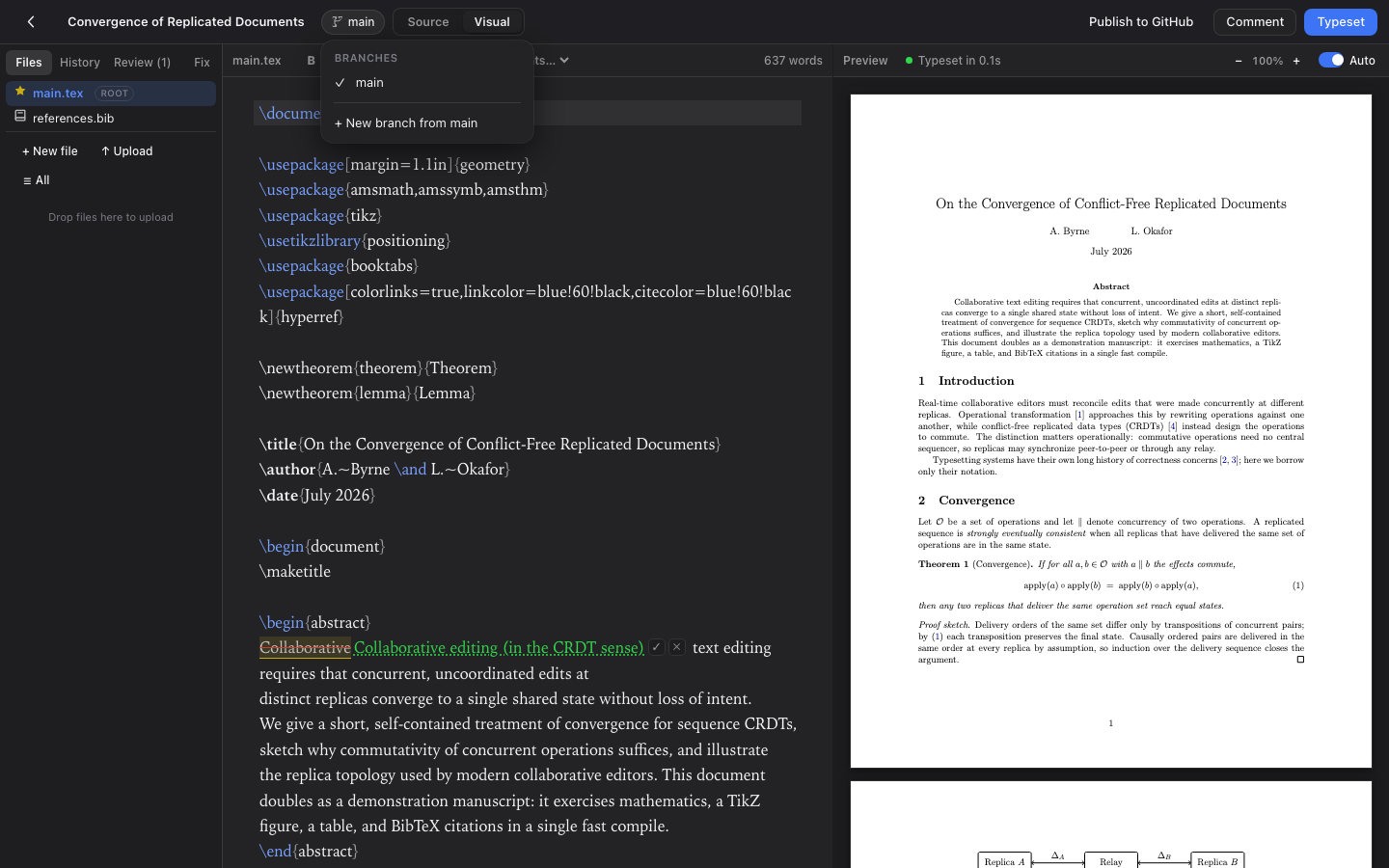
Branches in Aldine: create, switch and merge from the UI.
- Branches in the browser. Create a branch, edit it independently, and merge it back from the UI. Branches are git worktrees, so every branch can be edited at the same time.
- Push and pull to GitHub, GitLab, Gitea and Forgejo. Import a repository as a project or publish a local project to a new repository. Push and pull show ahead and behind counts, conflicts can be resolved in the editor, and you can open a pull or merge request from there. gitlab.com, self-hosted GitLab and any Gitea or Forgejo instance (Codeberg included) work; a personal access token is enough, without an OAuth app.
- Co-authors choose their tool. One author writes in the browser with live cursors. Another clones the repository and keeps using VS Code; their commits come back with one Pull.
- History is git history. Edits are written to the repository and committed automatically; the History view shows checkpoints and diffs.
- Server-side autopush. A team instance can create every new project in a GitLab group and push every autosave from the server.
The limits are different ones. Aldine is self-hosted only, still at v0.x, and tracks review as comments and git diffs, not as keystroke-level changes. The full list is in the self-hosting guide.
Setup is two containers: see self-hosting Aldine with Docker Compose.
No account, no install. The demo is a shared sandbox and resets every night.
When Overleaf's integration is the better choice
- You do not want to run a server. overleaf.com is hosted, so there is no server for you to install or operate. (Overleaf repository README, as of October 2026)
- Your co-authors already work on Overleaf and you want a git copy of the project for backup or for your own editor.
- You need track changes. Overleaf has them as a premium feature. (Overleaf docs: track changes, as of October 2026) Aldine has review comments with suggested edits and no keystroke-level tracking.
- You want an established product. Overleaf dates from 2011 (Overleaf: about, as of October 2026); Aldine's first release was in July 2026.
Common questions
Can I use git with Overleaf?
Yes. A project can be cloned, pulled and pushed over HTTPS with an authentication token, and it can be linked to a GitHub repository. (Overleaf docs: Git integration, as of October 2026) (Overleaf docs: GitHub synchronization, as of October 2026)
Is Overleaf's git integration paid?
On overleaf.com both git integration and GitHub synchronization are premium features. Overleaf's plans page lists them under integrations on its paid plans and not on the free plan. (Overleaf plans, as of October 2026)
Does Overleaf Community Edition have git?
No. Overleaf's comparison table lists git integration for Server Pro and not for Community Edition. (Server Pro vs. Community Edition, as of October 2026) More on that in self-hosting Overleaf: what Community Edition includes.
Can I use GitLab?
Overleaf's GitHub synchronization works with GitHub.com only. (Overleaf docs: GitHub synchronization, as of October 2026) With the git integration you have an ordinary clone, which you can push to any other remote yourself. Aldine pushes and pulls to GitLab, Gitea and Forgejo as well as GitHub.
How do I use git with LaTeX co-authors who write in the browser?
Either add git to a browser editor (Overleaf's premium git integration or GitHub synchronization) or use a browser editor that stores projects as git repositories, which is what Aldine does: co-authors edit live in the browser while others clone, branch and push.